

Remove object
Brush it outtags, hands, scuffs and stickers
Paint over anything that should not be in the shot. It disappears, and the product and background fill in as if it was never there.
50 free credits · 10 credits per image · No watermark
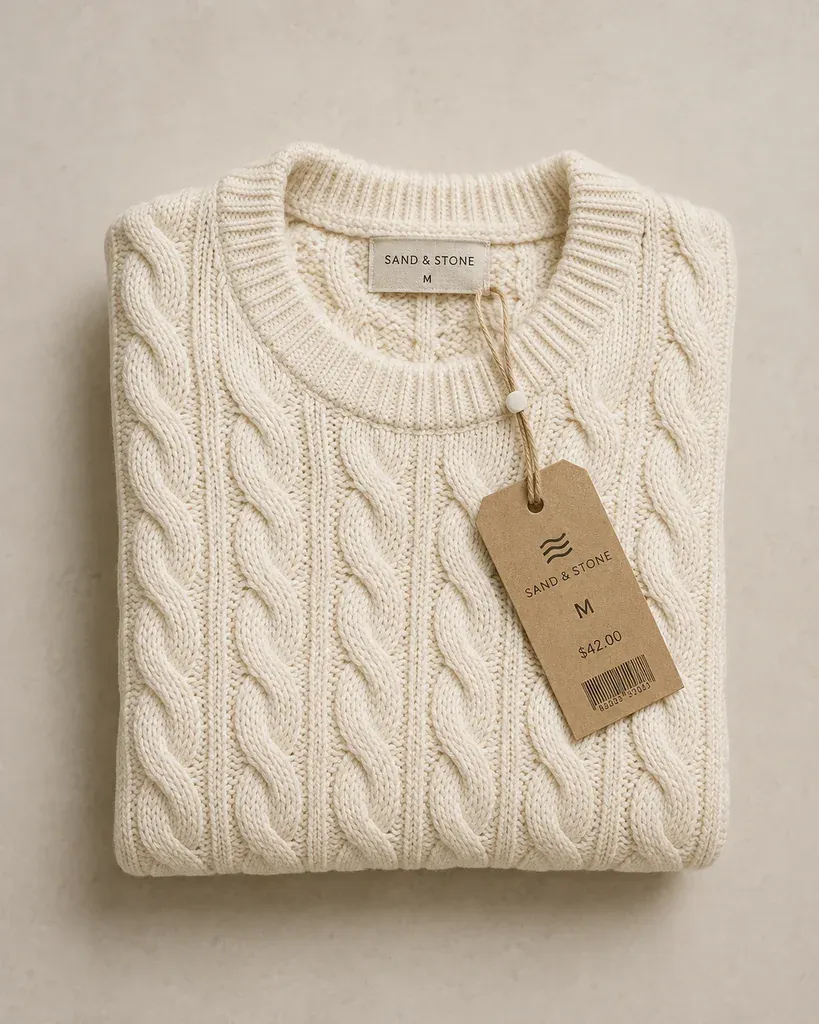
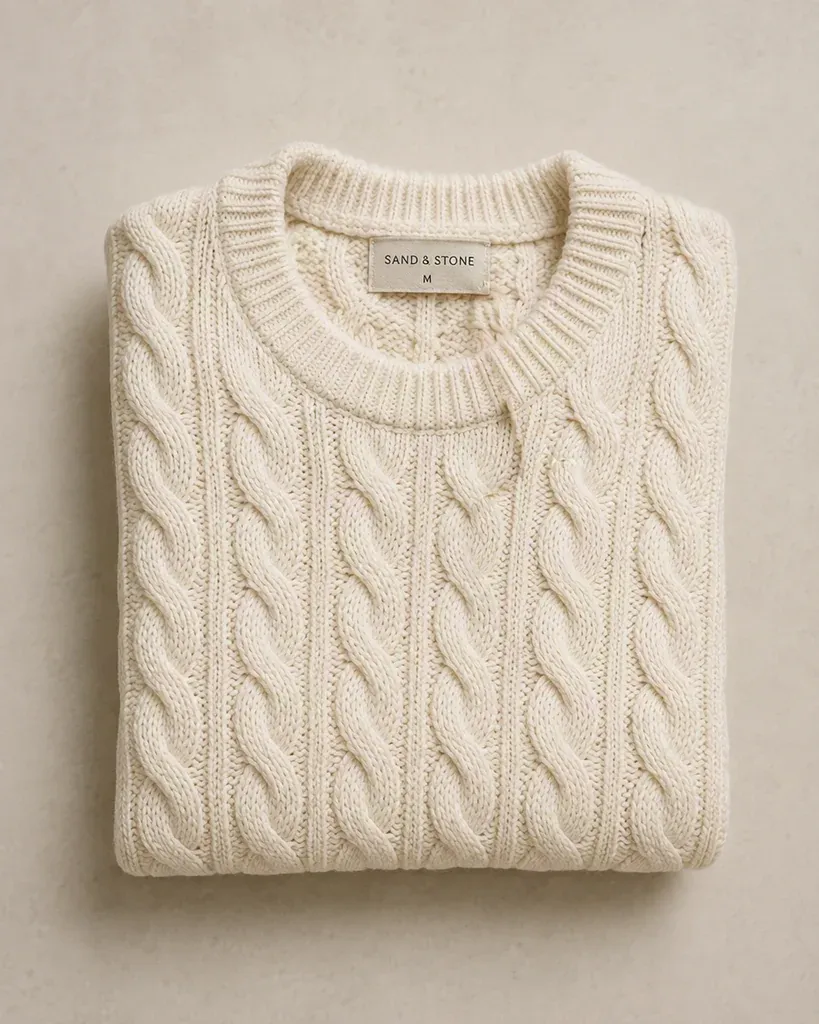
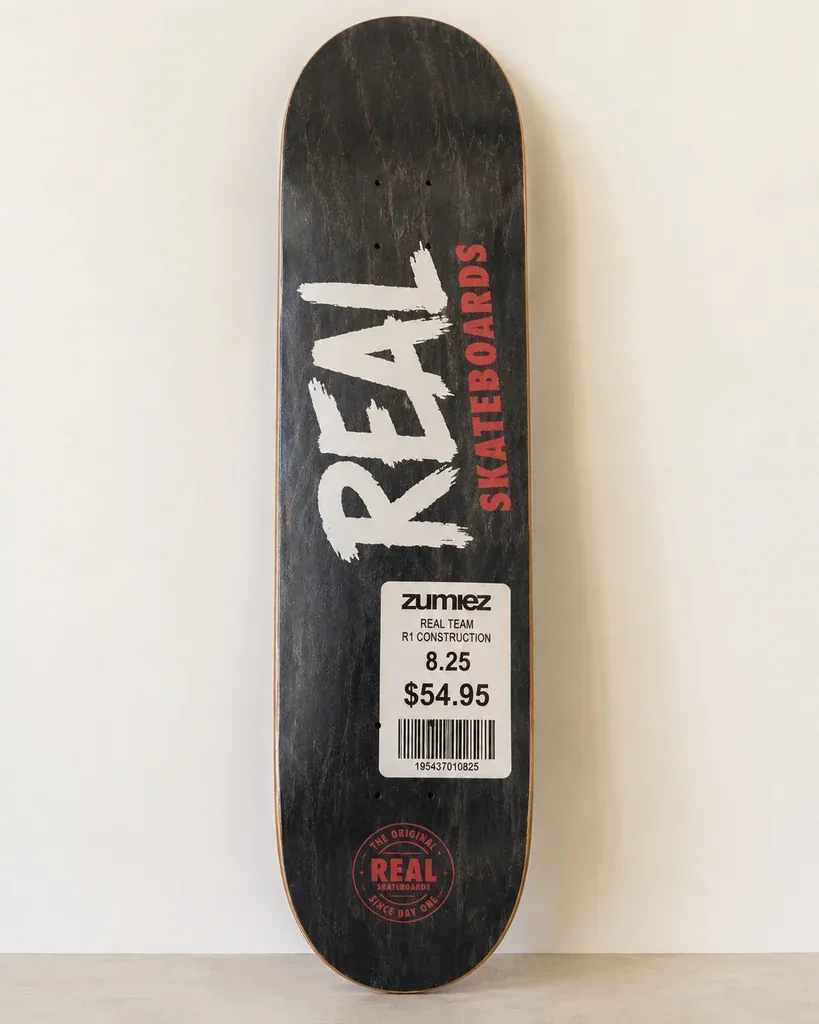
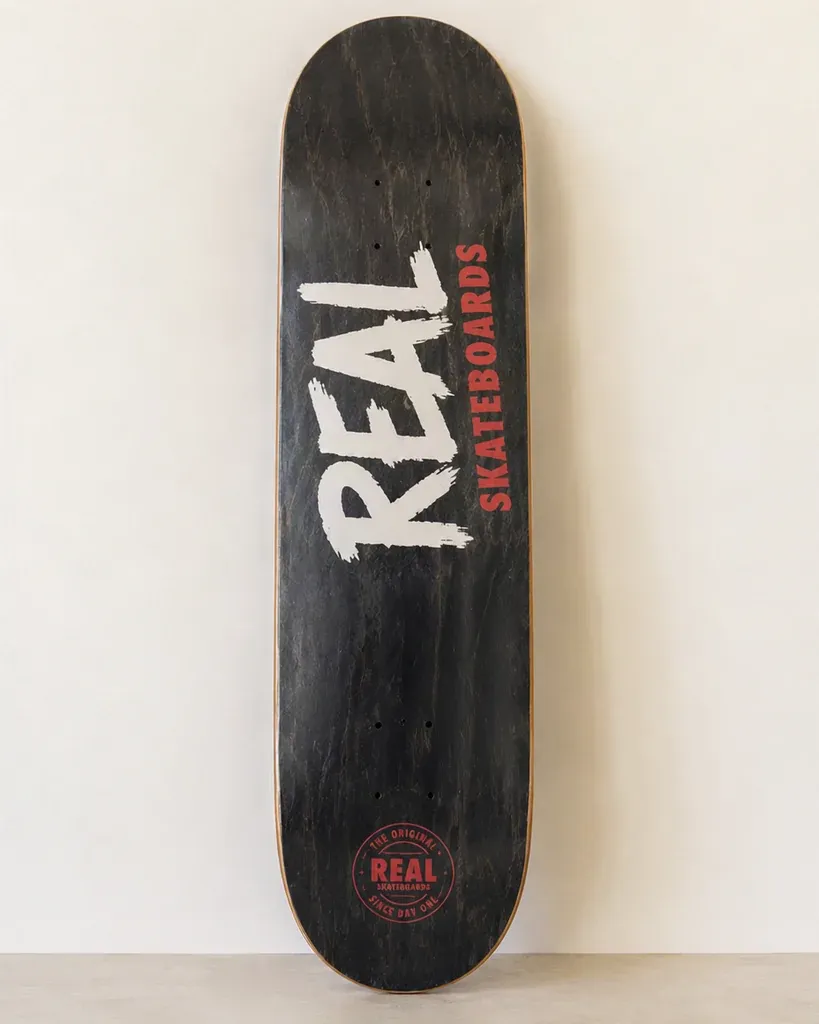
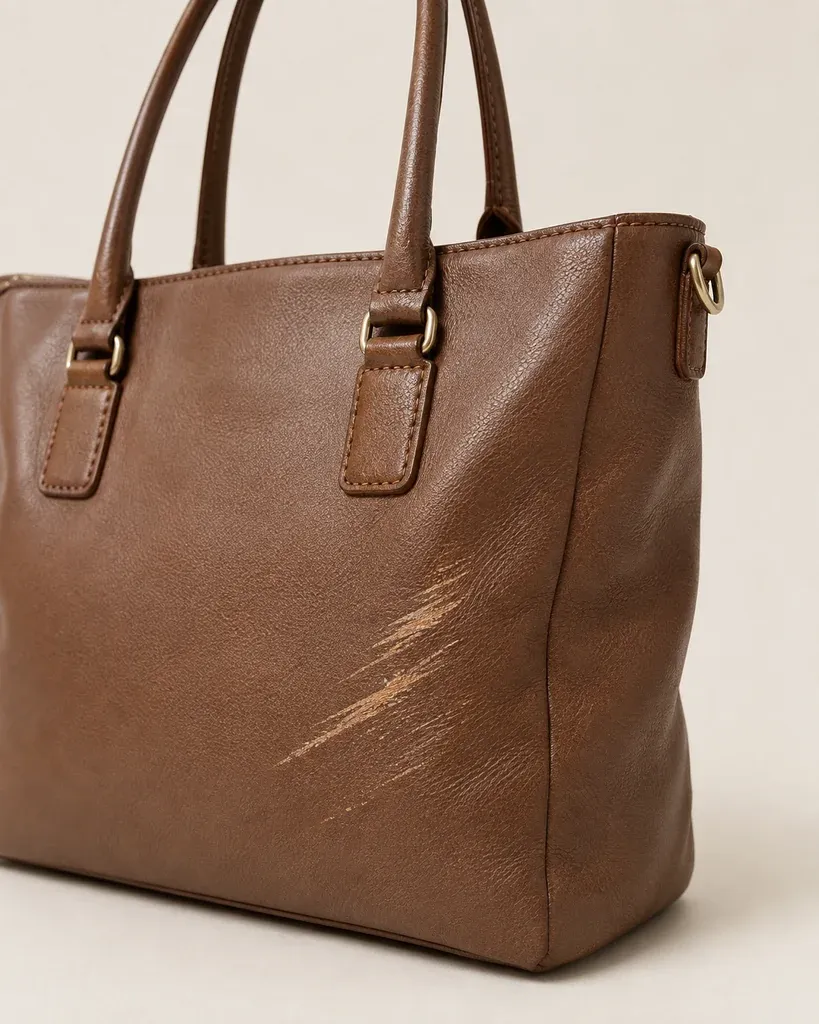
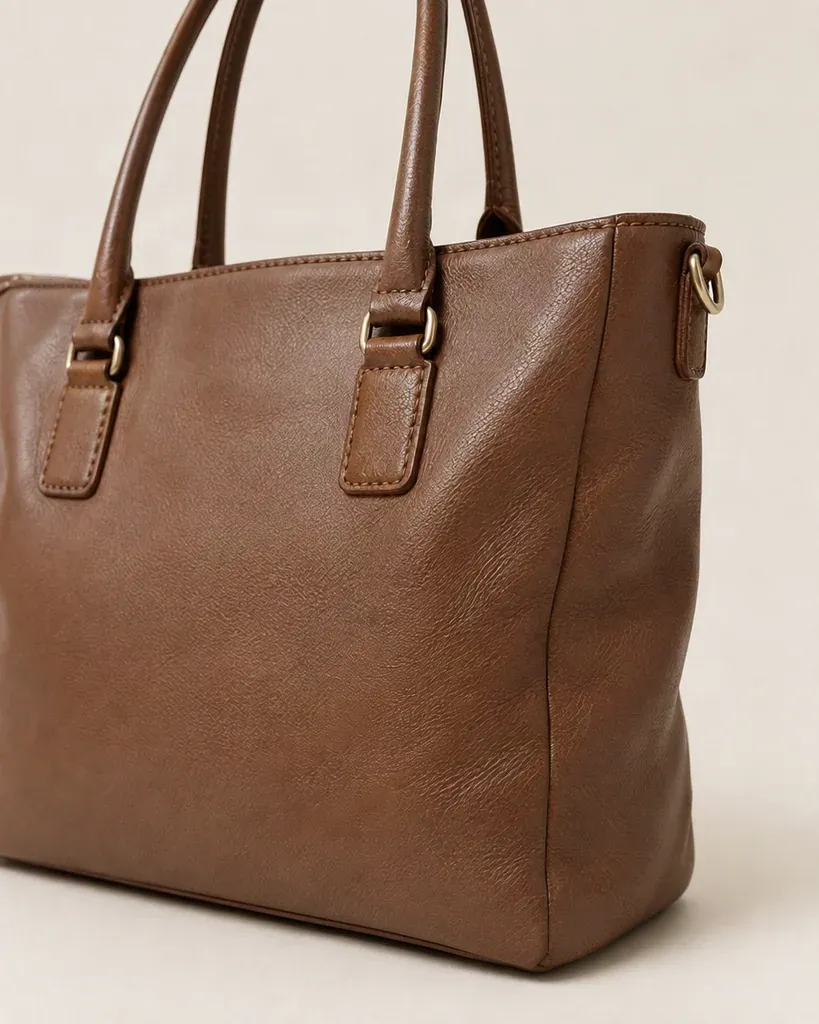
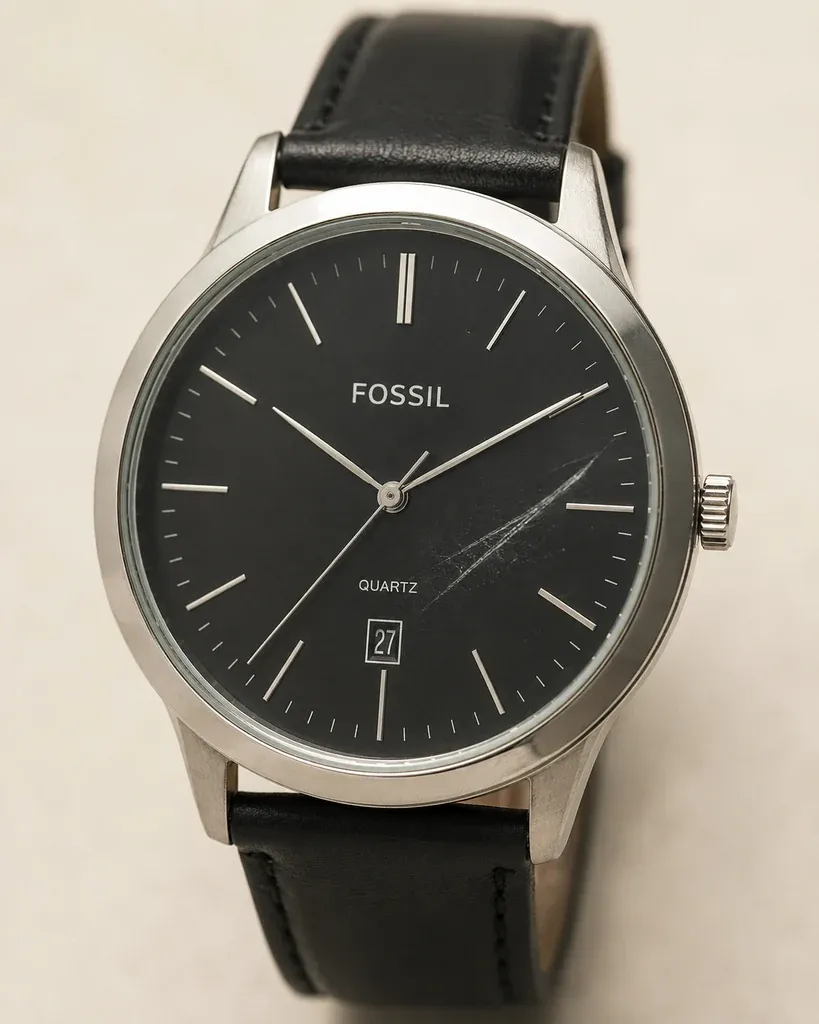
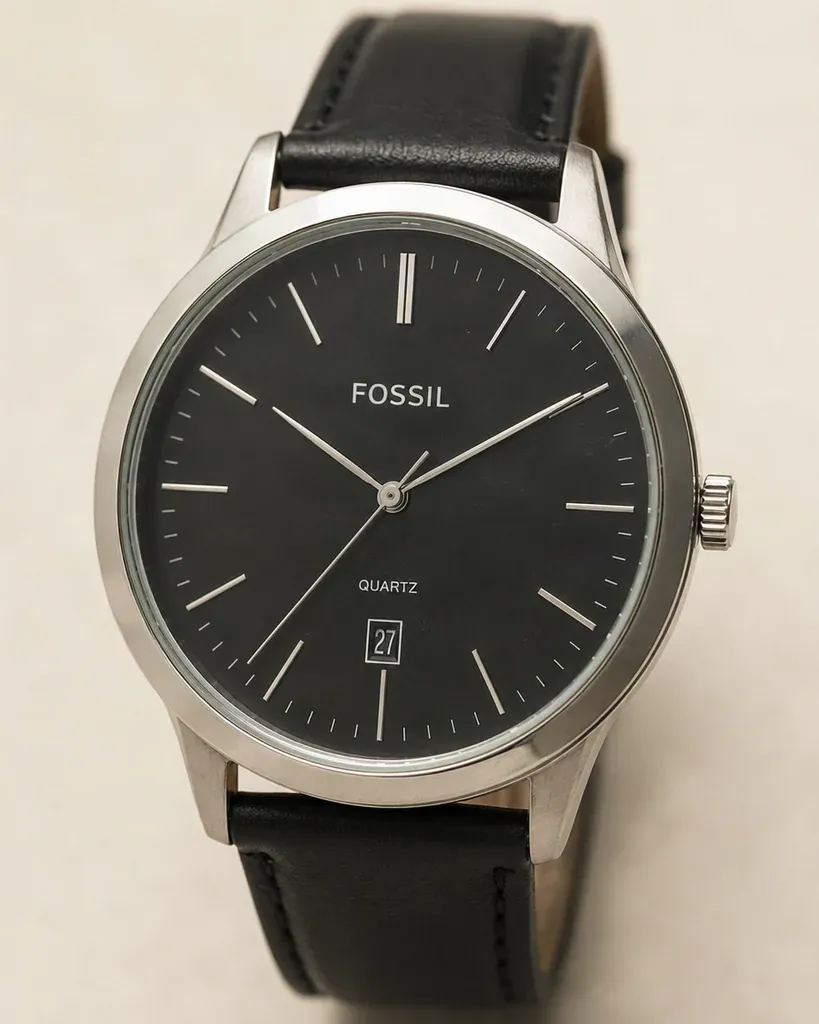
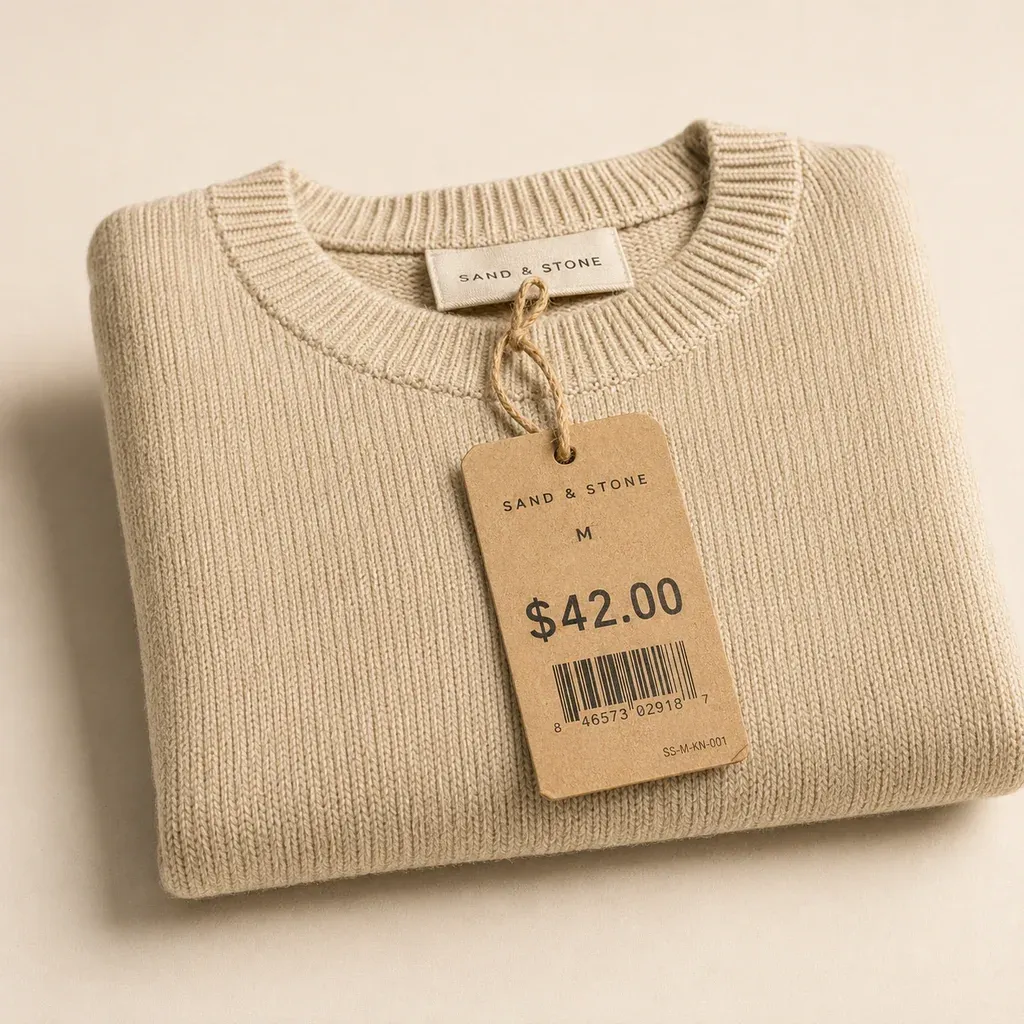
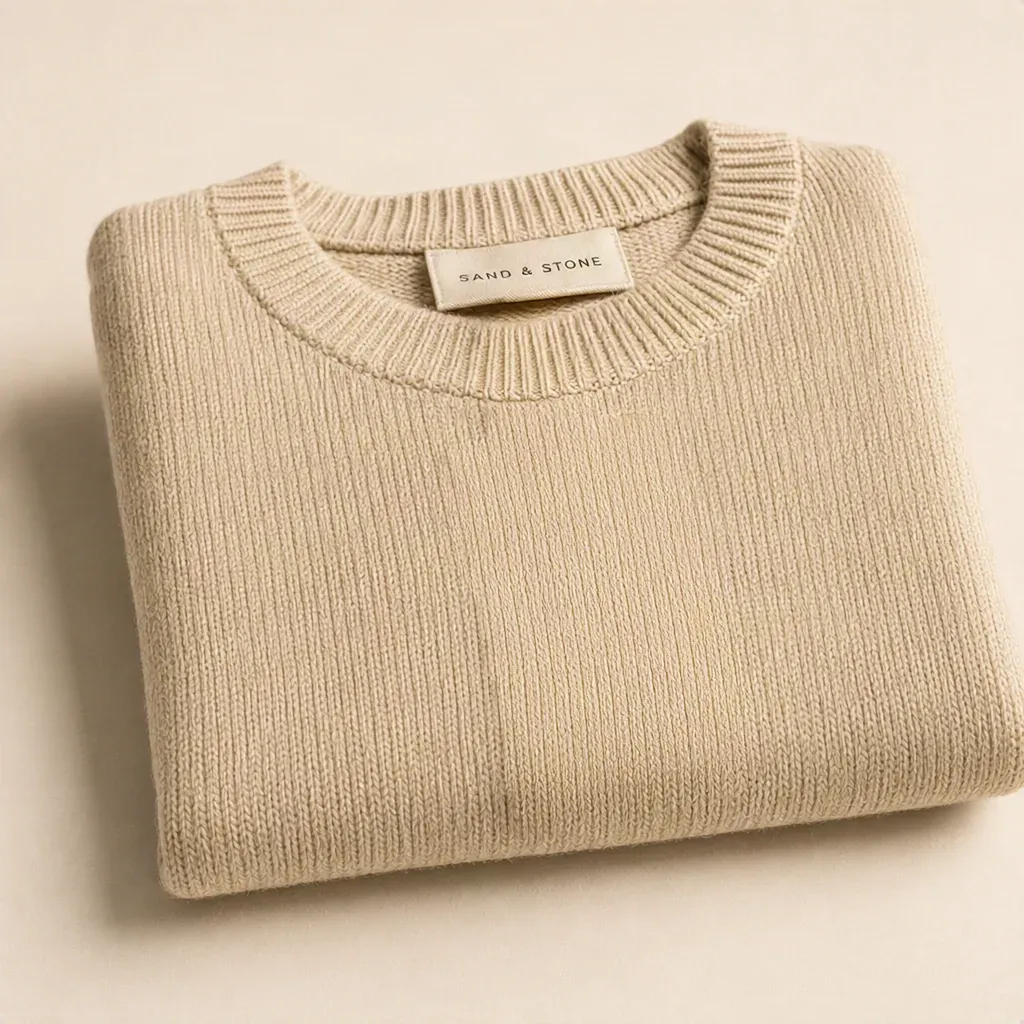
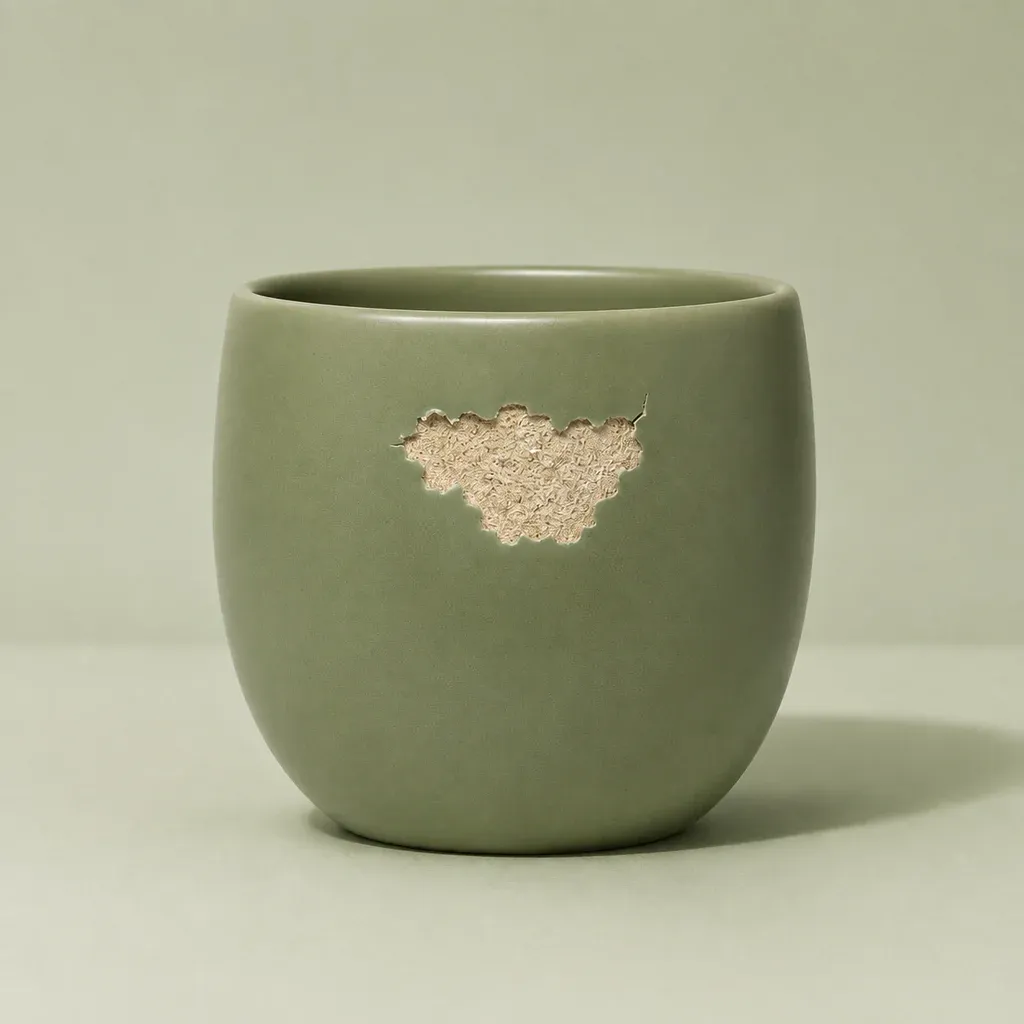
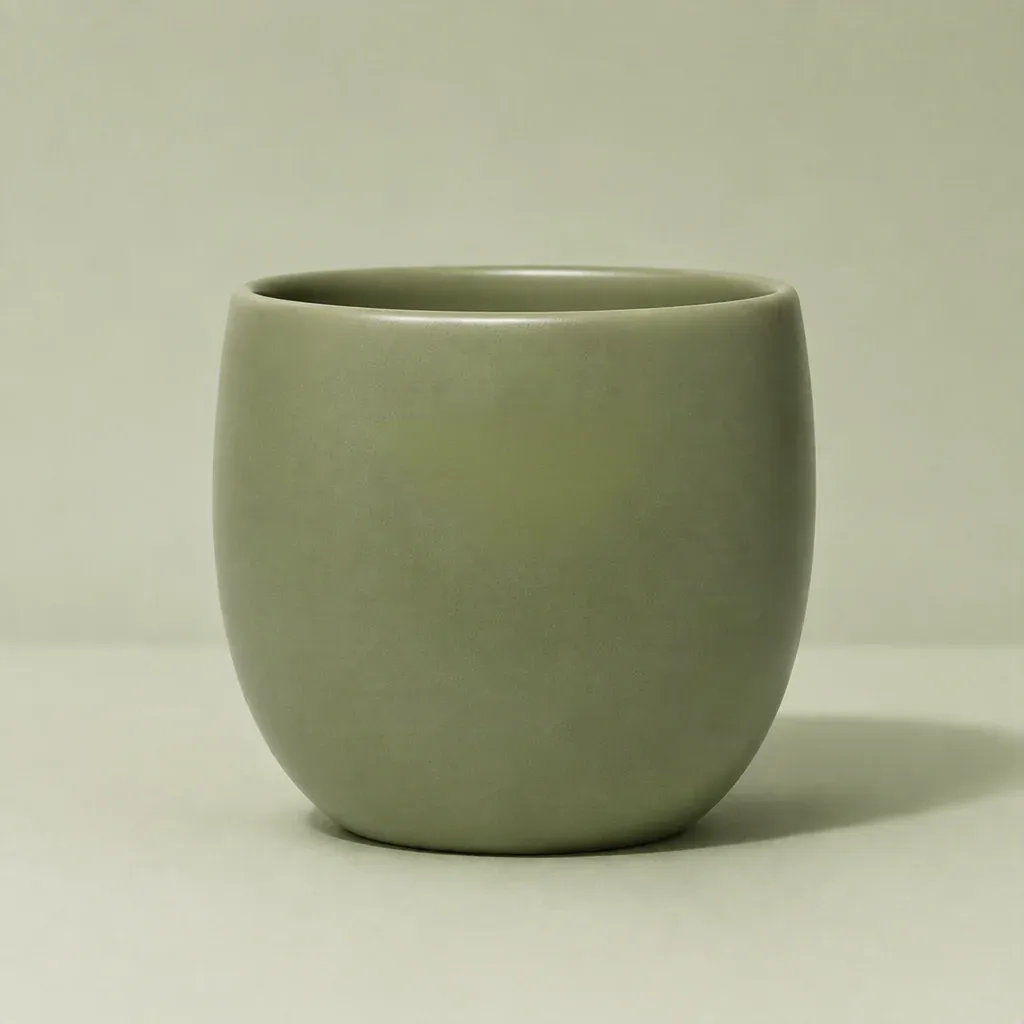
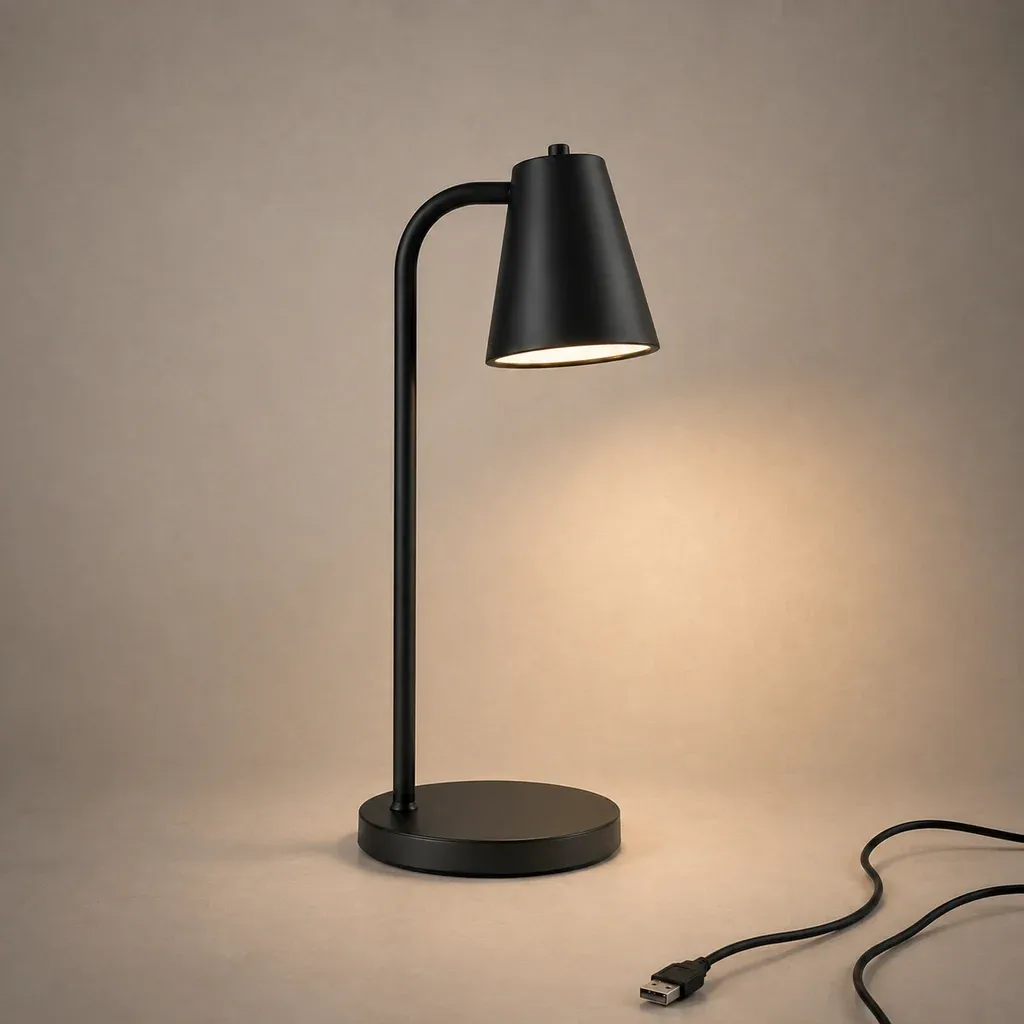
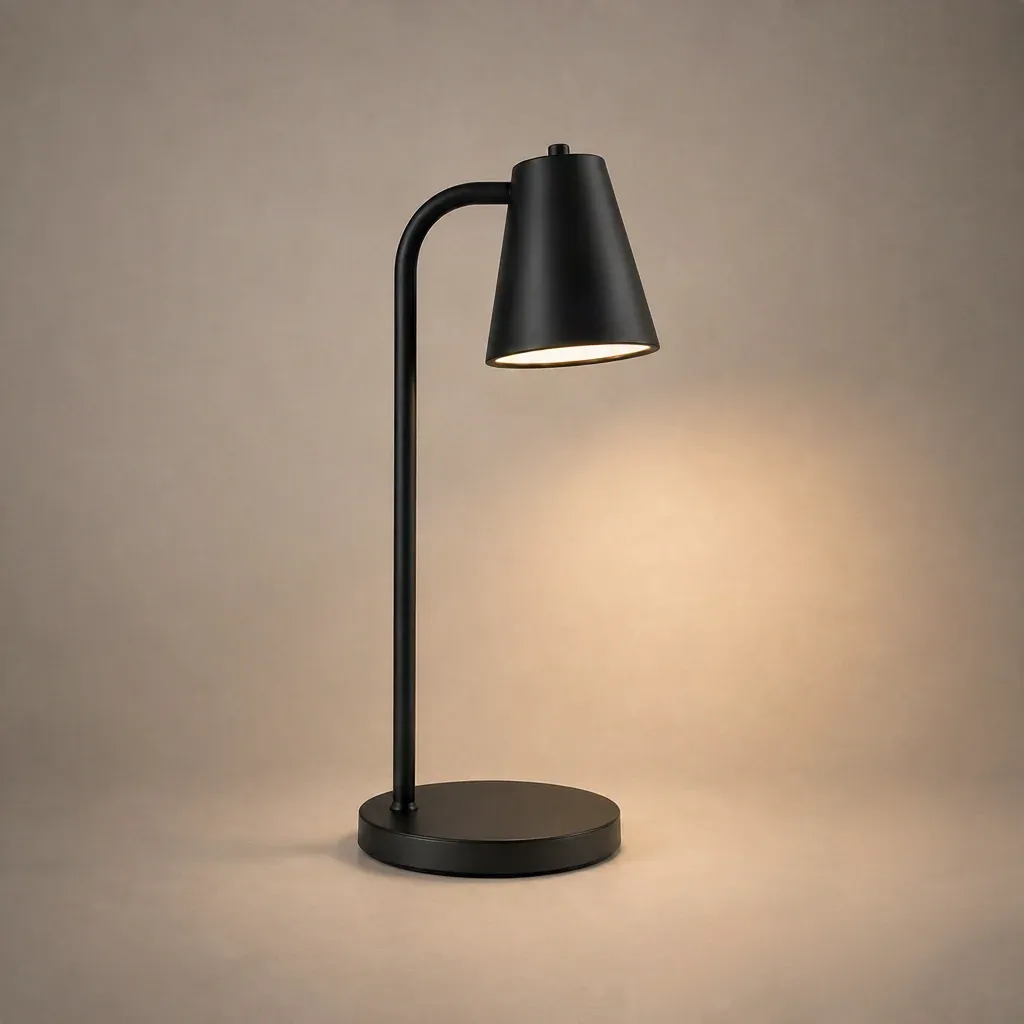
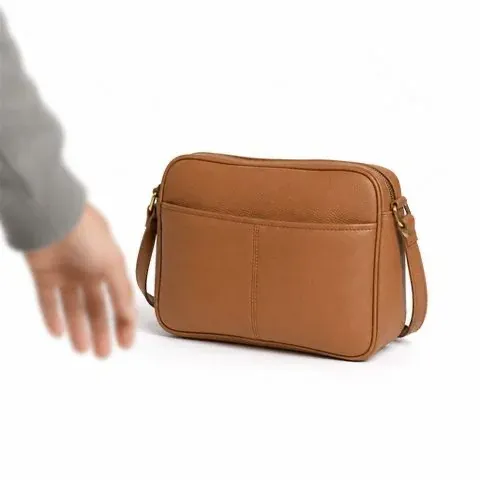
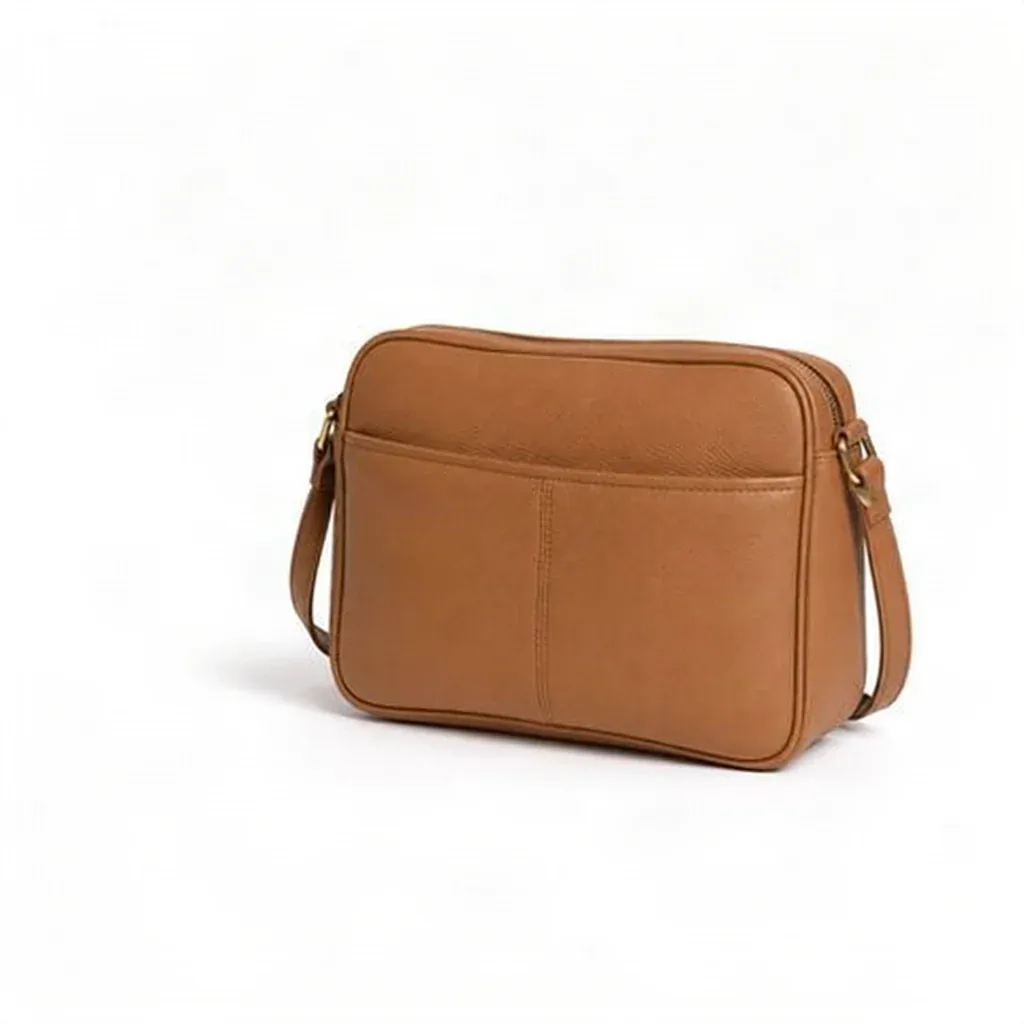
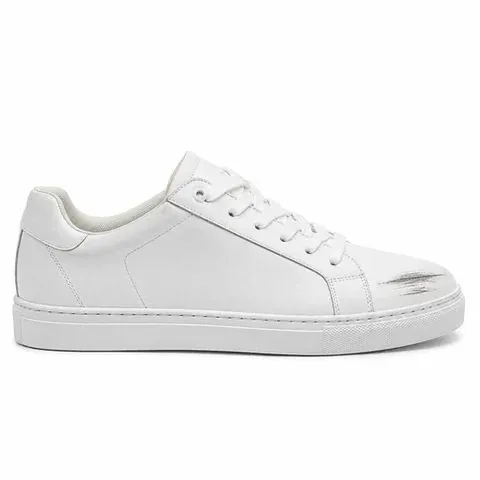
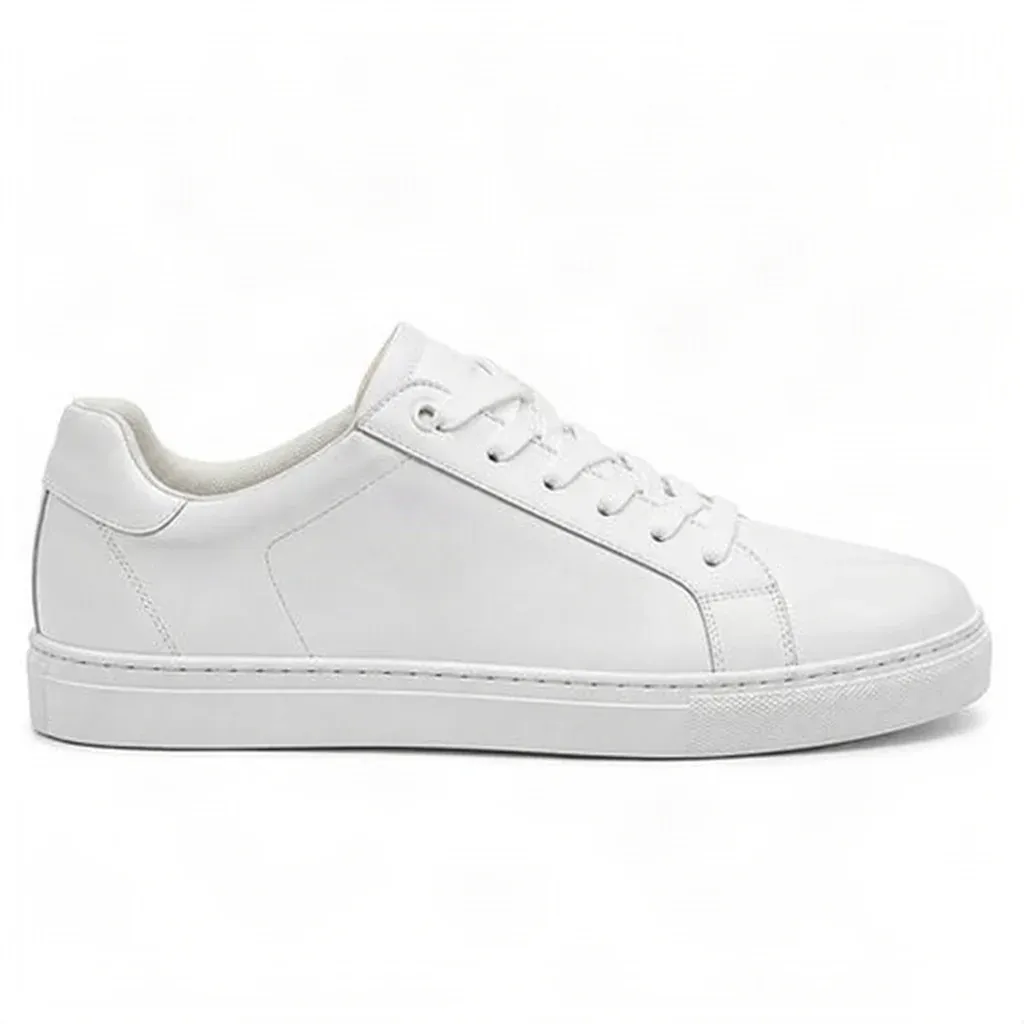
Before and after the brush
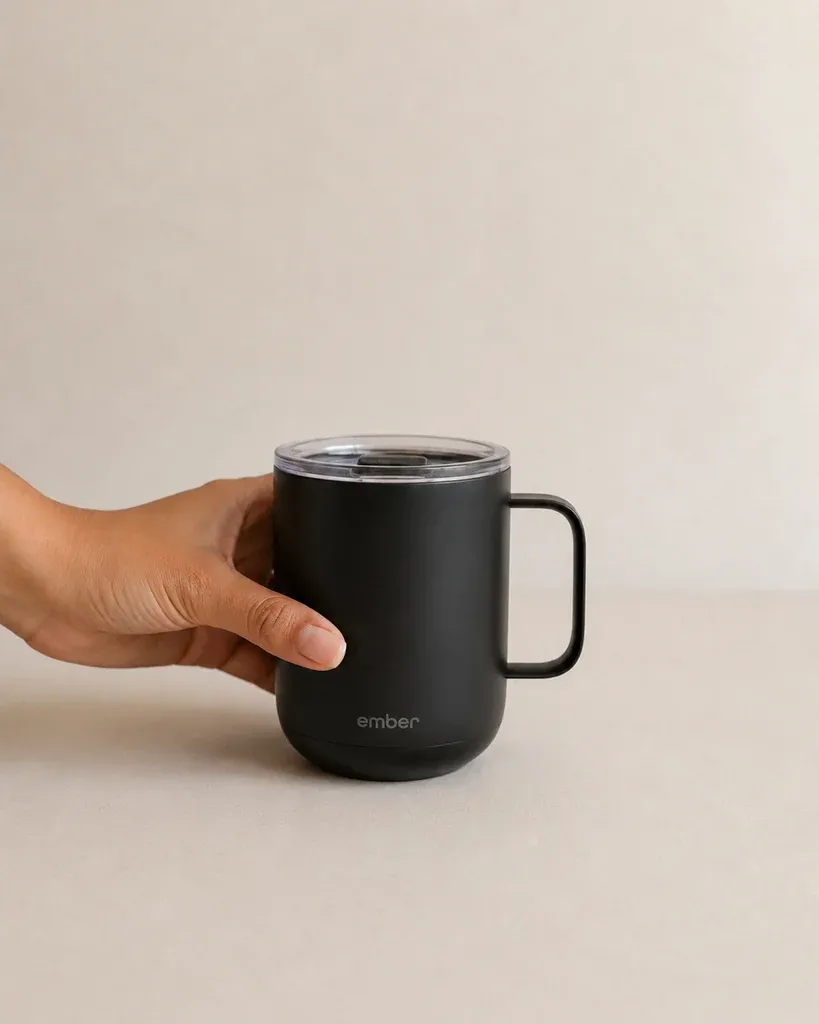
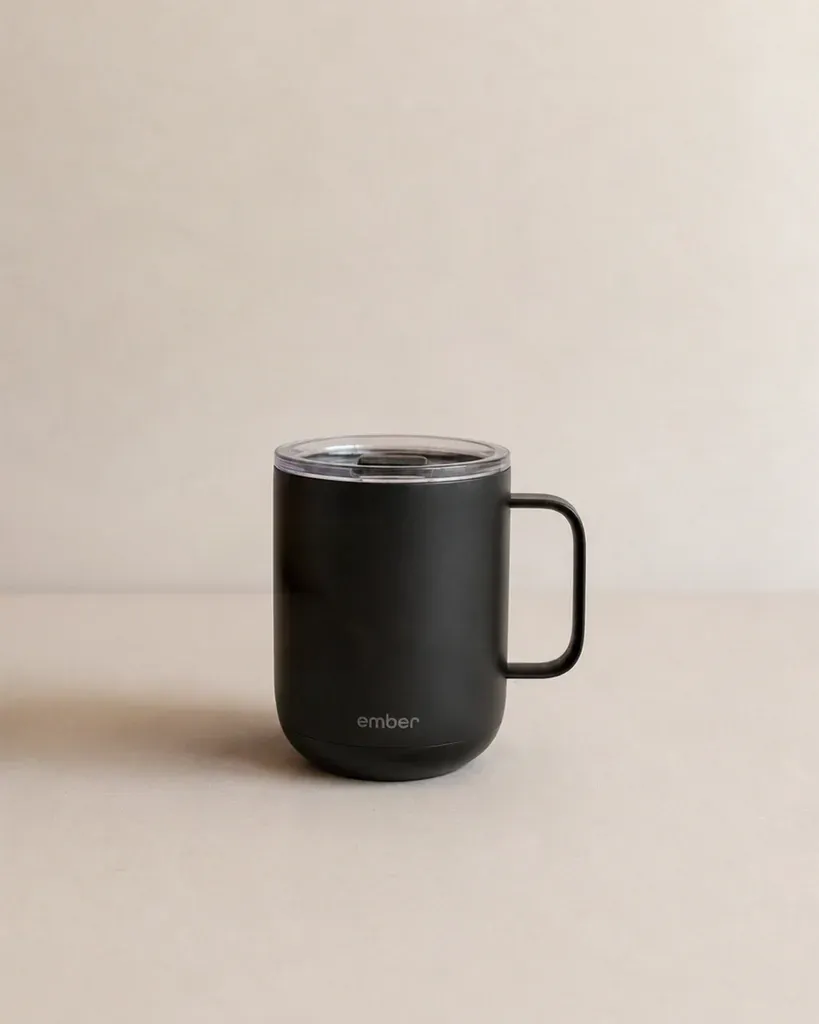
Real product photos with a tag, a hand, a sticker or a scratch removed. Drag to compare.
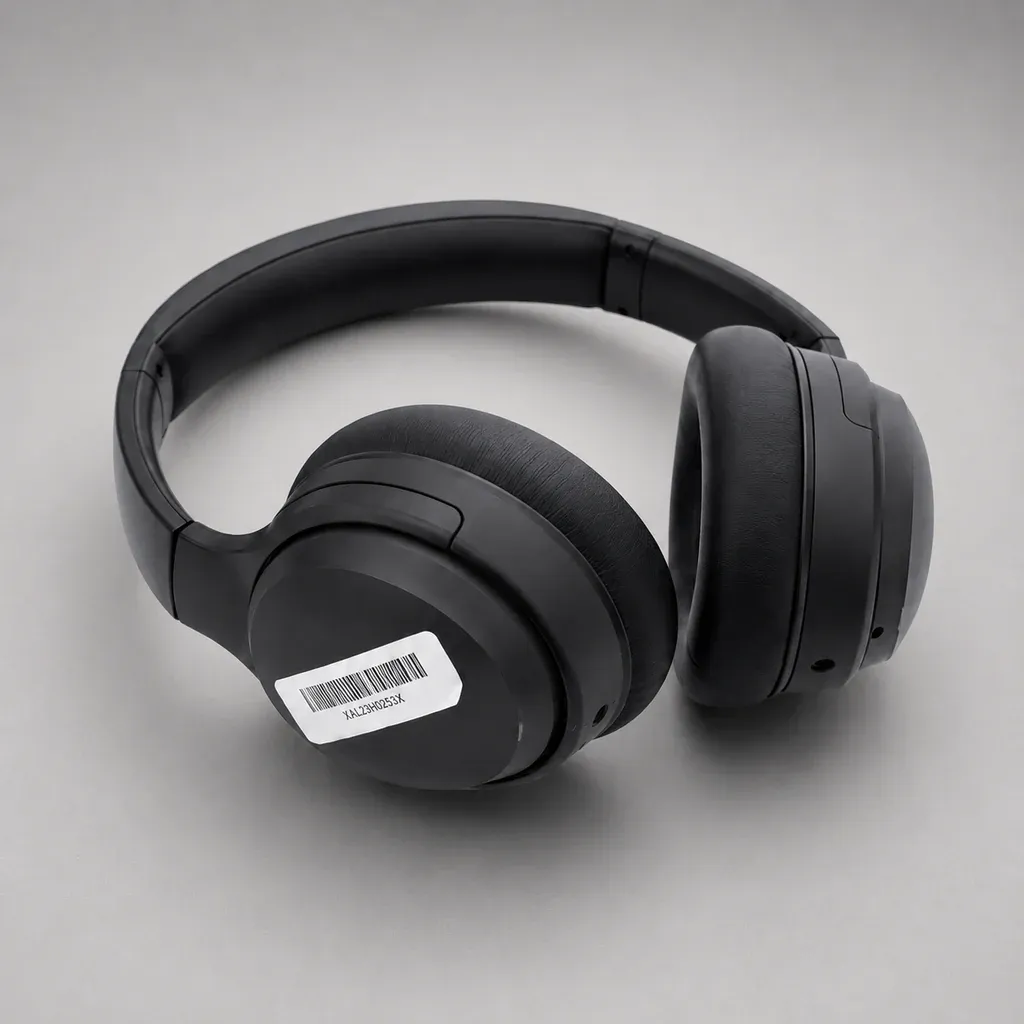
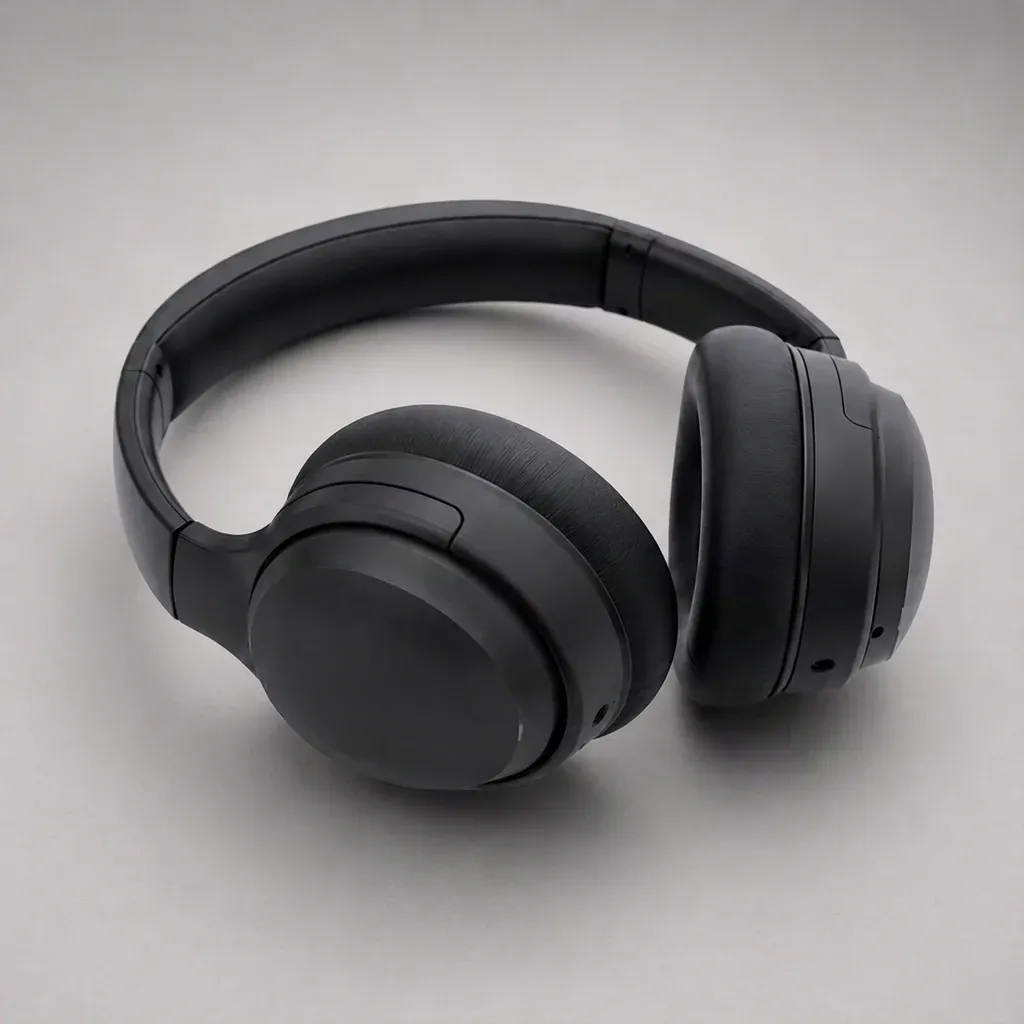
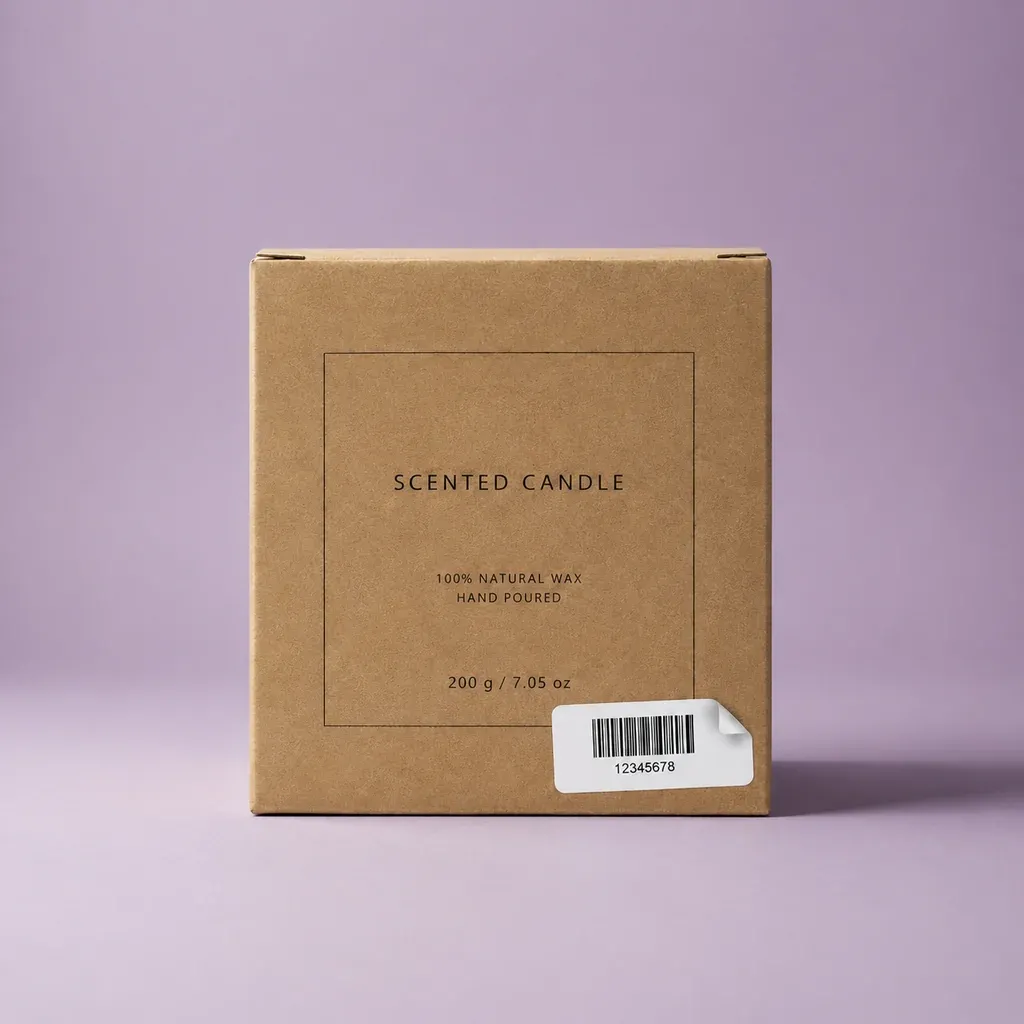
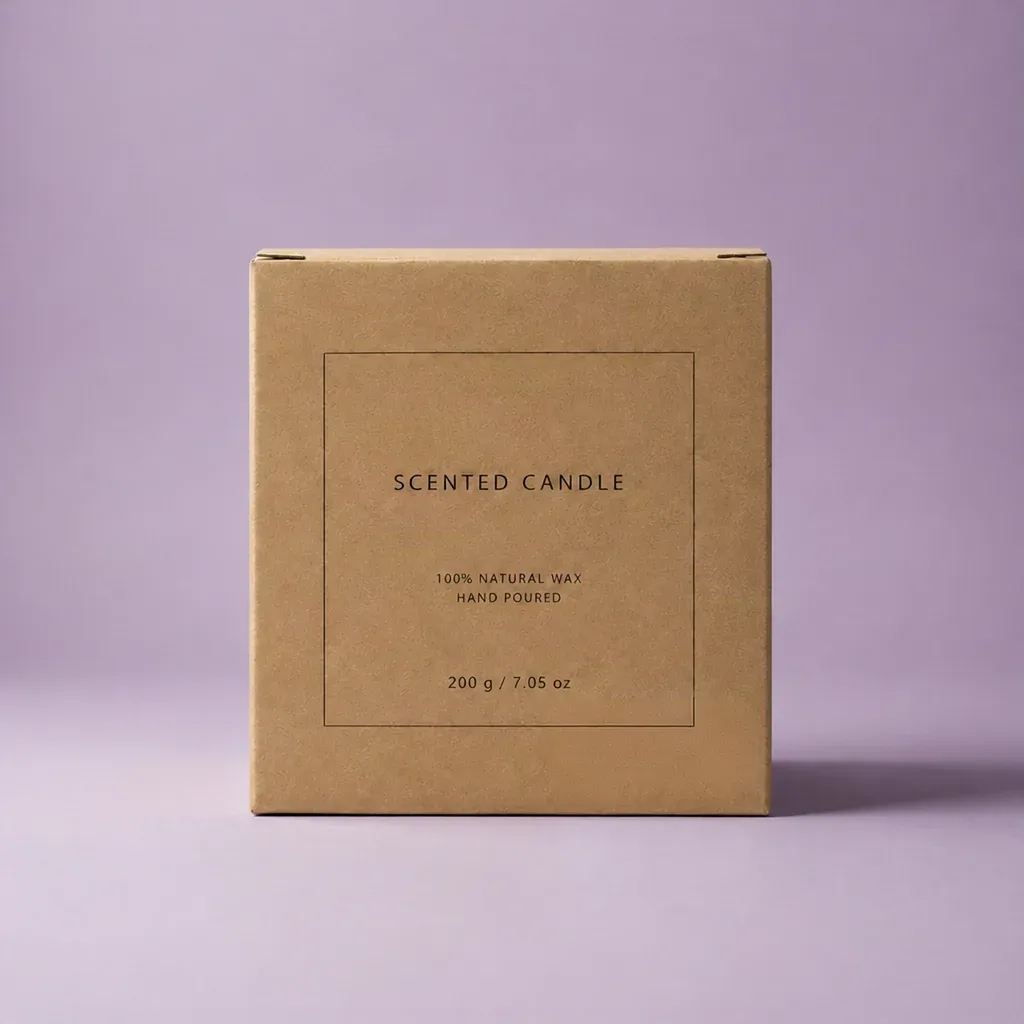

How it works
Three steps, one photo
- 1
Upload the photo
The shot you want to keep, with the thing you want gone still in it.
- 2
Brush over it
Paint roughly over the tag, hand, sticker or mark. No need to trace the edge.
- 3
Download the clean shot
The area fills in to match the product and background around it.
Why sellers use it
Built for listings that sell
Save the shot
Rescue a photo with a stray tag or a hand in frame instead of reshooting it.
Fixes small damage
Scuffs on leather, scratches on glass and chips in a glaze are painted out cleanly.
Background fills in
Surfaces, shadows and textures continue behind what you removed.
Rough brush is enough
No careful selection or clone stamp — a quick stroke does it.
Remove unwanted objects from product photos
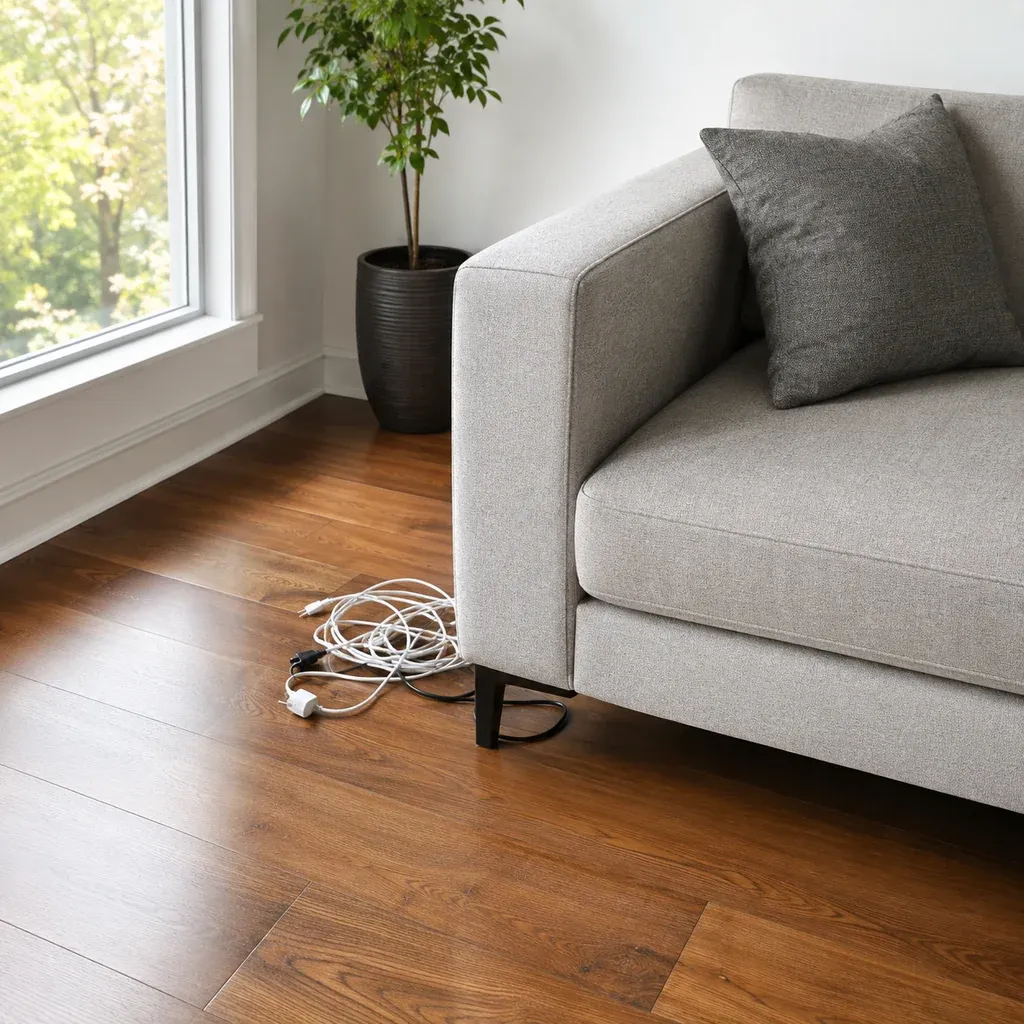
The best product photo is often the one with a price tag still attached, a hand in the corner or a cable trailing across the floor. An AI object remover — sometimes called a magic eraser — lets you keep that photo: brush over what should not be there and it is removed, with the background and product filled in around it.
Picsmob's erase tool is built for product shots. Paint over swing tags, barcode stickers, price labels, fingers holding the product, dust, scuffs, scratches and cables. The fill follows the surface and light around it, so a marble counter stays marble and a knit stays knitted.
Use it to clean up photos before a listing goes live, to remove supplier stickers from stock shots, or to tidy a lifestyle photo before it goes into an ad.
FAQ
Questions sellers ask
How do I remove an object from a photo?
Upload the photo, choose Erase, and brush over the object. Run it, and the object is removed and the area filled in.
What can I remove?
Price tags, swing tags, stickers, barcodes, hands and fingers, cables, dust, scuffs, scratches and small props.
What is the difference between erase and replace?
Erase removes what you paint over and fills in the background. Replace swaps it for something new that you describe in a prompt.
How much does it cost?
10 credits per image. Every new account gets 50 free credits, and packs start at $9 for 200 credits. There is no subscription and credits never expire.
Is there a watermark? Can I use the result commercially?
No watermark, on free credits or paid. Commercial use is included — product pages, marketplaces, social posts and ads.
What if the result is not right?
If a job fails or times out, its credits are refunded automatically. You can run the tool again on the same photo at any time.
Related tools
Replace object in photo →
Paint over part of a photo and describe what should be there instead — a new colour, a different prop, a new print. Lighting and perspective are matched. 15 credits per image.
Background remover →
Cut any product photo out to a transparent PNG or a clean white background in one click. Built for Shopify, Amazon and Etsy listings. 1 credit per image, 50 free credits, no watermark.
AI product photography →
Turn one product photo into studio and lifestyle scenes with AI — marble vanities, café tables, poolside, kitchens and more, with real lighting and shadows. 20 credits per image, 50 free credits.








Export-ready for the channels where you sell